
Configure
Once you have installed Wings and the required components, the next step is to create a node on your installed Panel. Go to your Panel administrative view, select Nodes from the sidebar, and on the right side click Create New button.
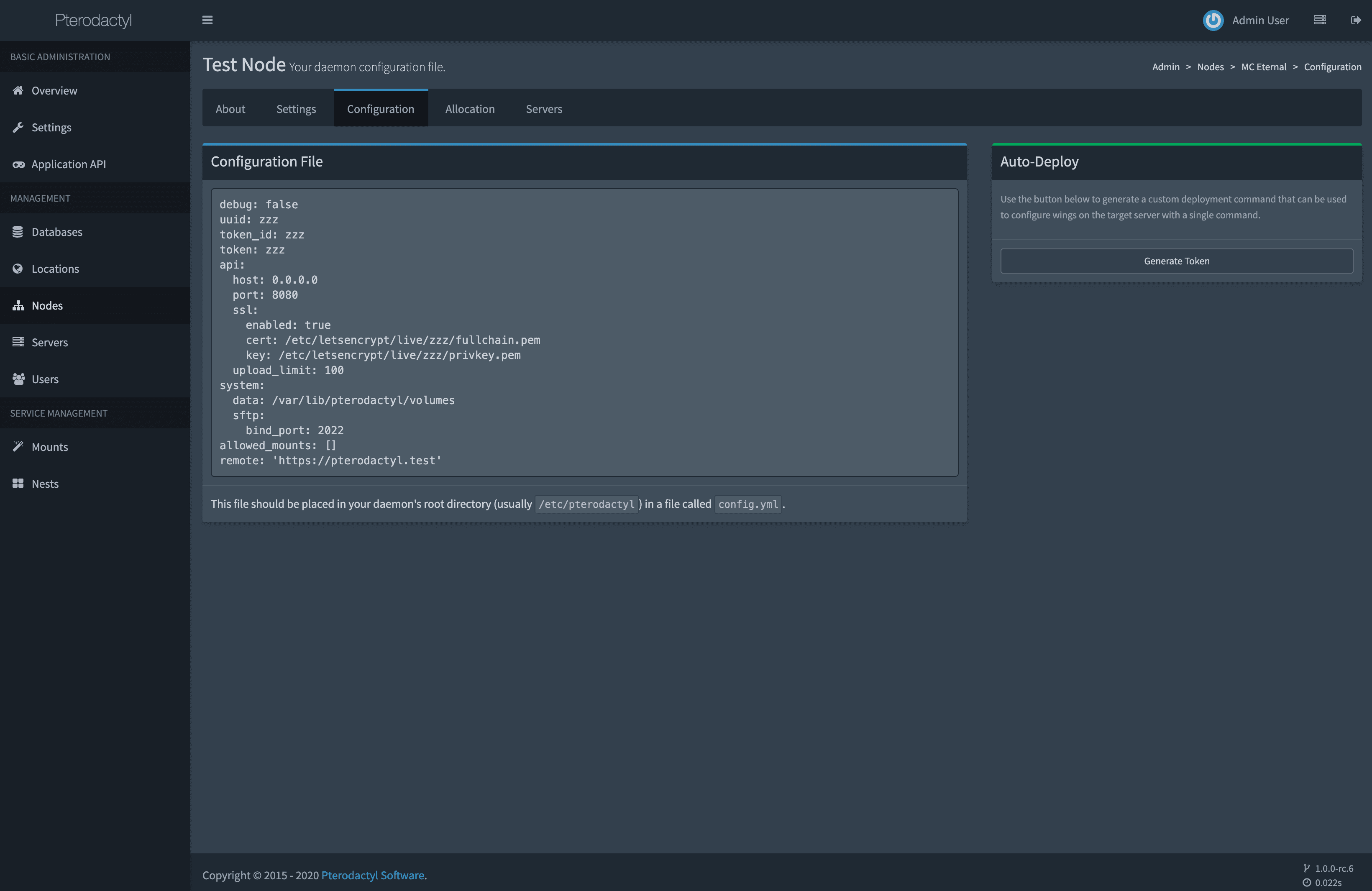
After you have created a node, click on it and there will be a tab called Configuration. Copy the code block content, paste it into a new file called config.yml in /etc/pterodactyl and save it.
Alternatively, you can click on the Generate Token button, copy the bash command and paste it into your terminal.
WARNING
When your Panel is using SSL, the Wings must also have one created for its FQDN. See Creating SSL Certificates documentation page for how to create these certificates before continuing.
Starting Wings
To start Wings, simply run the command below, which will start it in a debug mode. Once you confirmed that it is running without errors, use CTRL+C to terminate the process and daemonize it by following the instructions below. Depending on your server's internet connection pulling and starting Wings for the first time may take a few minutes.
sudo wings --debugYou may optionally add the --debug flag to run Wings in debug mode.
Daemonizing (using systemd)
Running Wings in the background is a simple task, just make sure that it runs without errors before doing this. Place the contents below in a file called wings.service in the /etc/systemd/system directory.
[Unit]
Description=Pterodactyl Wings Daemon
After=docker.service
Requires=docker.service
PartOf=docker.service

[Service]
User=root
WorkingDirectory=/etc/pterodactyl
LimitNOFILE=4096
PIDFile=/var/run/wings/daemon.pid
ExecStart=/usr/local/bin/wings
Restart=on-failure
StartLimitInterval=180
StartLimitBurst=30
RestartSec=5s

[Install]
WantedBy=multi-user.target
Then, run the commands below to reload systemd and start Wings.
sudo systemctl enable --now wingsNode Allocations
Allocation is a combination of IP and Port that you can assign to a server. Each created server must have at least one allocation. The allocation would be the IP address of your network interface. In some cases, such as when behind NAT, it would be the internal IP. To create new allocations go to Nodes > your node > Allocation.
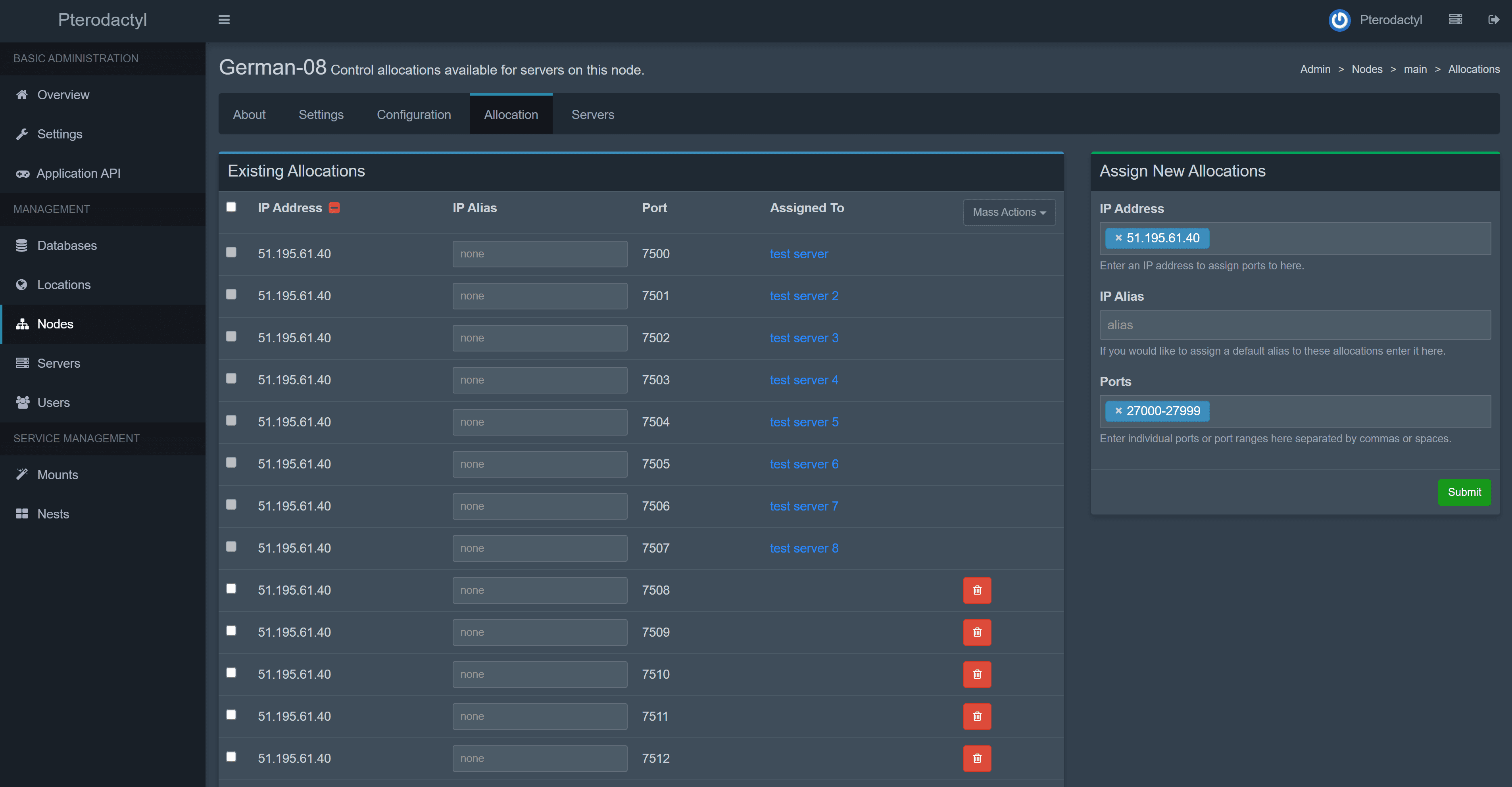
Type hostname -I | awk '{print $1}' to find the IP to be used for the allocation. Alternatively, you can type ip addr | grep "inet " to see all your available interfaces and IP addresses. Do not use 127.0.0.1 for allocations.